Boolean Black Belt

Leveraging social networks, resume databases, and the Internet for sourcing and recruiting

  • FREE Sourcing + Recruiting Resources
  • Who is the Boolean Black Belt?
  • Contact Me
  • Copyright, Disclaimer, Photos

Subscribe via Email

adobe illustrator cs serials Buy Adobe Illustrator CS5 for Mac OEM - Online Software Downloads Center illustrator brushes adobe photoshop adobe Buy Adobe Illustrator CS5 OEM - Online Software Downloads Center free tutorial aging picture adobe photoshop adobe cs2 free illustrator trial Buy Adobe Creative Suite 5 Master Collection OEM - Online Software Downloads Center adobe illustrator cs 11 serial free adobe illustrator cs key Buy Adobe Flash Professional CS5 for Mac OEM - Online Software Downloads Center adobe cs2 indesign personal seminar started adobe illustrator 10 mac Buy Adobe Flash Professional CS5 OEM - Online Software Downloads Center adobe indesign free download adobe illustrator envelope no 10 Buy Adobe Photoshop CS5 Extended for Mac OEM - Online Software Downloads Center fonts adobe indesign adobe photoshop cs2 prefence settings Buy Adobe Dreamweaver CS5 for Mac OEM - Online Software Downloads Center adobe photoshop animals free 2007 adobe photoshop program Buy Adobe InDesign CS5 for Mac OEM - Online Software Downloads Center adobe photoshop keys import corel draw into adobe illustrator Buy Adobe InDesign CS5 OEM - Online Software Downloads Center adobe books illustrator academic version of dreamweaver adobe Buy Adobe Creative Suite 5 Master Collection for Mac OEM - Online Software Downloads Center adobe photoshop freezes adobe photoshop element 5 0 Buy Adobe Dreamweaver CS5 OEM - Online Software Downloads Center adobe photoshop save photo without background loading font in adobe photoshop Buy Adobe Photoshop CS5 Extended OEM - Online Software Downloads Center adobe photoshop cs3 torrent torrentspy

A Better Way to Search LinkedIn for Industry Experience

Posted at July 12, 2010

LinkedIn Industry SearchSourcers and recruiters are often tasked with finding candidates that have experience in a specific industry. I’m sure that such a thing seems easy to the hiring managers and clients making the request, but it’s actually not an easily accomplished feat to perform exhaustively.

Sure, finding some people who work in a specific industry is easy – simply target one or a few major companies/competitors and you’re off to the races, right?

Not so fast, unless you’re happy only finding some people and you’re not really concerned with finding the best.

Most industries are comprised of many companies, and some have several hundred to over 1000! How can anyone say for sure that if they targeted 10 or fewer companies in an industry that they were exposing themselves to the best talent available?

Some people (and companies) think that the best talent can only come from a short list of companies they’ve identified, which seems both absurd and short-sighted in my opinion. The most talented “game changers” don’t always come from a blue chip Fortune 500 company.

However, even if a sourcer/recruiter wanted to identify people who worked at any one of a large number of companies in a particular industry, they are stuck to only searching for a few companies at a time because most search engines/interfaces have limits to the length of the search string that can be run. This can make for an extremely tedious and laborious search process, which explains why most sourcers and recruiters only search for a handful of companies or make use of built-in industry search functionality.

Industry Search Limitations

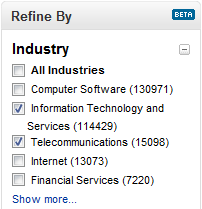
One way to search for people who have experience in a specific industry is to use an industry filter/selection, such as LinkedIn’s:
LinkedIn_Industry_Search_A

However, a while back I wrote about the intrinsic challenges and limitations of searching for people based on an industry selection which can actually prevent you from finding the people you’re looking for.

A large part of the problem lies in the fact that many people have experience working in more than one industry, yet they can only select one on their LinkedIn profile. The other issue at hand comes from the fact that people can and will identify themselves in any way they want to – which may have nothing to do with the way YOU would identify or label them. 

For example, a marketing professional working for a pharmaceutical company can just as easily think of themselves as working in the “Consumer Goods” or “Marketing and Advertising” industry when making the selection on their LinkedIn profile rather than “Pharmaceuticals.”

Of course this challenge isn’t limited to LinkedIn or social media in general – this phenomenon also occurs in job board resume databases and corporate ATS/CRM systems with similar functionality.

Is There a Better Way to Search for Industry-Specific Experience?

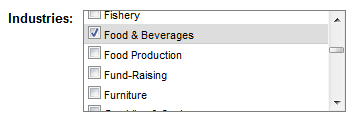
Let’s say you are in need of finding people with SAP experience who have worked in the Food Production industry. If this were something you were asked to do on a regular basis, you’d probably have a list of companies that you typically target for these folks. However, even if you didn’t you can easily create one.

Using LinkedIn’s company search functionality, you can browse for your industry and make appropriate selections amongst the various search options to end up with a list of companies that fit your criteria.
Video_Start_300

In the example, I refined the search down to 116 companies. Most sourcers and recruiters only search for a handful of companies at a time (or at all), typically due to the limitations of most search interfaces/engines.

However, because a basic LinkedIn account has for all intents and purposes “bottomless” search fields, we can take those 116 companies and, through some creative use of Excel, Word and find and replace, create a 350 word OR statement that we can put in the Company field:
Video_Start_300

Try doing that with a job board database, an Internet search engine, or your ATS/CRM. :-)

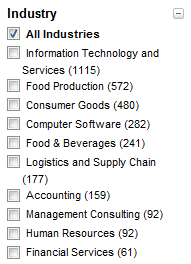
If you take a look at all of the industries in the search results, you’ll see that most of the people who have worked for one of the 116 Food Production companies we searched for did not choose “Food Production” – only about 18% of the results from the top 10 industries represented in the results come from “Food Production” (572 out of 3,181).

If someone was searching for people who mention SAP on their LinkedIn profile and who selected the Food Production industry, they would only be finding a small fraction of the total available and relevant results!
LinkedIn_Food_Production_Search_Industry_Selections

Thank You LinkedIn!

The ability to search for large volumes of companies in a particular industry (I’ve had no issues with 300+!) gives you a more exhaustive and complete method of identifying potential talent with specific industry experience, regardless of which industry the potential candidates selected when creating/updating their profile. 

Of course, when crafting company searches, you’ll have to keep in mind that there are often many ways that people will write company names – you can only find exactly what you search for in most cases.

Happy hunting!

Industry Searching, LinkedIn
  • Digg
  • Stumbleupon
  • Delicious
  • Reddit
  • Technorati

If you enjoyed this post, please consider to leave a comment or subscribe to the feed and get future articles delivered to your feed reader.

Comments

10 Responses to “A Better Way to Search LinkedIn for Industry Experience”
  • Sourcing Samuri says:
    at

    “through some creative use of Excel, Word and find and replace, create a 350 word OR statement that we can put in the Company field:”

    - This is great! But now my interest has been peaked… What is this “creative use of Excel” you speak of? Can we get a video demonstration of that?

    :-)

  • Jung Kim says:
    at

    Maybe it would be advantageous to create/build a 350+ word OR statement that we can put in Google Custom Search?

  • John Turnberg says:
    at

    Thanks for this tip Glen.
    Here is a (n easy) way to make a in excel an giant OR statement. Remember that bad data in begets bad data out (see example at the end – Cos. & Corp.)

    1. Pick a cell such as H2 and enter ” into it
    2. in the column next to your data (your data starts on row 2, Column B), enter this formula =H$2&B2&”"” OR ” –H$2 is the quote sign, B2 is your data, “”" OR ” will add OR with a space before and after.
    3. enter this formula in column D =D1&C2 –D1 is blank, but will have a value later, and C2 is your data.
    4. Drag the formulas down your list.
    5. Column C will be “data” OR and in your last cell in column D will be all your Data with OR’s in between and a Trailing OR.
    6. Copy this cell and you can Paste it into Linkedin.
    7.!!!! Remove the trailing OR at the end of the string!!!!

    Fortune 100 Type of list:

    “Wal-Mart Stores” OR “Exxon Mobil” OR “Chevron” OR “General Electric” OR “Bank of America Corp.” OR “ConocoPhillips” OR “AT&T” OR “Ford Motor” OR “J.P. Morgan Chase & Co.” OR “Hewlett-Packard” OR “Berkshire Hathaway” OR “Citigroup” OR “Verizon Communications” OR “McKesson” OR “General Motors” OR “American International Group” OR “Cardinal Health” OR “CVS Caremark” OR “Wells Fargo” OR “International Business Machines” OR “UnitedHealth Group” OR “Procter & Gamble” OR “Kroger” OR “AmerisourceBergen” OR “Costco Wholesale” OR “Valero Energy” OR “Archer Daniels Midland” OR “Boeing” OR “Home Depot” OR “Target” OR “WellPoint” OR “Walgreen” OR “Johnson & Johnson” OR “State Farm Insurance Cos.” OR “Medco Health Solutions” OR “Microsoft” OR “United Technologies” OR “Dell” OR “Goldman Sachs Group” OR “Pfizer” OR “Marathon Oil” OR “Lowe’s” OR “United Parcel Service” OR “Lockheed Martin” OR “Best Buy” OR “Dow Chemical” OR “Supervalu” OR “Sears Holdings” OR “International Assets Holding” OR “PepsiCo” OR “MetLife” OR “Safeway” OR “Kraft Foods” OR “Freddie Mac” OR “Sysco” OR “Apple” OR “Walt Disney” OR “Cisco Systems” OR “Comcast” OR “FedEx” OR “Northrop Grumman” OR “Intel” OR “Aetna” OR “New York Life Insurance” OR “Prudential Financial” OR “Caterpillar” OR “Sprint Nextel” OR “Allstate” OR “General Dynamics” OR “Morgan Stanley” OR “Liberty Mutual Insurance Group” OR “Coca-Cola” OR “Humana” OR “Honeywell International” OR “Abbott Laboratories” OR “News Corp.” OR “HCA” OR “Sunoco” OR “Hess” OR “Ingram Micro” OR “Fannie Mae” OR “Time Warner” OR “Johnson Controls” OR “Delta Air Lines” OR “Merck” OR “DuPont” OR “Tyson Foods” OR “American Express” OR “Rite Aid” OR “TIAA-CREF” OR “CHS” OR “Enterprise GP Holdings” OR “Massachusetts Mutual Life Insurance” OR “Philip Morris International” OR “Raytheon” OR “Express Scripts” OR “Hartford Financial Services” OR “Travelers Cos.” OR “Publix Super Markets” OR “Amazon.com”

  • Boolean Black Belt says:
    at

    @John – Thank you for posting your OR-statement building how-to…your Excel skills are definitely beyond mine! I was simply copying and pasting info from LinkedIn company/industry search results lists into Excel, copying the company name column into Word, and using find (^p – I discovered this is the “return” on each line) and replace ( OR ). That works like a charm – but had not yet figured out how to easily put quotes around multi-word phrases. You’re the man – thanks John!

  • fraggy says:
    at

    John,

    I tried your formula and am getting an error – specifically with the =H$2&B2&””” OR ” piece

    The ””” bit is highlighted in excel as part of the issue. any ideas there?
    Thanks

  • John says:
    at

    replace the “” (the double “) with H2&”
    H2 is the cell that has the double quote ” in it

    This will enclose your Company Name in quotes “Company Name” in the OR statement

  • fraggy says:
    at

    got it john – i did =H$2&B2&H$2 in column d
    and =D1&” OR “&C2 in column e and that worked for me

    thanks for this tip – this is great and a real time saver.

  • Matt Kerr says:
    at

    I like using the Concatenate function on excel to combine the columns. Try this:

    Step 1. In column A1 enter a company name, or even a key word. Make sure you put quote marks at the beginning and end and also add one extra space using your space bar. Do the same for additional company names or keywords in A2, A3, etc.

    Step 2. In column B1 enter the word OR and add an extra space after it. You can then move your cursor over the lower edge of B1 and pull down to copy that value into the cells for B2, B3, etc.

    Step 3. Go to formulas and use the Concatenate formula your cell entry in C1 should be this =CONCATENATE(A1,B1)

    You can go to the lower edge of C1 and pull down to duplicate for cells C2, C3, etc. as appropriate.

    Step 4. Left click (Mac may be different) and highlight data in column C then right click to copy data.

    Step 5. Right click on cell D1 and select Paste Special. A dialogue box opens and make sure radio button Values is selected. The click OK and copy contents to either the keywords or company search box on LinkedIn.

    Step 6. Add ( to beginning of data set, remove ending OR and close with)

    Enjoy!

Leave Comment

Click here to cancel reply.


About Me

I have significant experience with and passion for leveraging technology and Lean principles to achieve high quality hires in a Just-In-Time manner. I'm a power user of Social Media, ATS and CRM applications, job board resume databases, the Internet, Boolean queries and semantic search for recruiting.

My LinkedIn profile Follow me on Twitter Find me on Facebook SlideShare presentations


Search

Archives

  • August 2010
  • July 2010
  • June 2010
  • May 2010
  • April 2010
  • March 2010
  • February 2010
  • January 2010
  • December 2009
  • November 2009
  • October 2009
  • September 2009
  • August 2009
  • July 2009
  • June 2009
  • May 2009
  • April 2009
  • March 2009
  • February 2009
  • January 2009
  • December 2008
  • November 2008
  • October 2008

Categories

  • Aggregators
  • Analytics
  • Applicant Tracking Systems (ATS)
  • Artificial Intelligence Matching
  • Best Practices
  • Boolean
  • Boolean 101
  • Boolean Logic
  • Boolean Search Tips and Tricks
  • Candidate Pipelining
  • Candidate Quality
  • Cold Calling
  • Conferences
  • Copyright Info
  • Diversity Sourcing
  • Events
  • Exalead
  • Extended Boolean
  • Facebook
  • Google
  • Hidden Talent Pools
  • How-To's
  • Human Capital Data
  • Industry Searching
  • Internet Sourcing
  • Jigsaw
  • Job Boards
  • Job Posting
  • Job Search
  • Lean/JIT Recruiting
  • LinkedIn
  • Mistakes
  • Monster
  • Monster vs. Google
  • Myths and Misconceptions
  • NEAR Operator
  • Passive Candidates
  • Passive Sourcing and Recruiting
  • Proximity Searching
  • Recruiting Technology
  • Relationship Building
  • Resume Aggregators
  • Resume Sourcing
  • Resume Sourcing vs. Cold Calling
  • Resume Writing
  • Search Process
  • Semantic Search
  • Social Media
  • Social Networking
  • Social Recruiting
  • SourceCon
  • Sourcing and Recruiting
  • Sourcing Automation
  • Sourcing in Europe
  • Sourcing Mistakes
  • Spoke
  • Talent Intelligence
  • Talent Mining
  • Talent Warehouse
  • Thank you!
  • Traffic Data
  • Training Sourcers and Recruiters
  • Twitter
  • Uncategorized
  • x-ray search
  • Yahoo
  • ZoomInfo


  • Recent Posts

    • Boolean Black Belt Website Visitor Analytics
    • Private and Out of Network Search Results on LinkedIn
    • Anti-Social Recruiting
    • Denver Colorado Recruiting Conference August 25th
    • Recruiting is a Matter of Perspective
  • Twitter

    • I'm at Grand Hampton Clubhouse. http://4sq.com/c6C5Cn 2 days ago
    • Wish people showed more respect for truckers on the road - they quite literally are the cornerstone of our economy! 3 days ago
    • I'm at Kforce, Inc. (1001 East Palm AVE, Tampa). http://4sq.com/bqKYmW 3 days ago
    • More updates...

    Posting tweet...

    Powered by Twitter Tools

  • Recent Comments

    • Matt Kerr: I like using the Concatenate function on excel to combine th...
    • fraggy: got it john - i did =H$2&B2&H$2 in column d and =D...
    • John: replace the "" (the double ") with H2&" H2 is the cel...
    • Steve Cherry: Spot on - Latin may be the mother tongue of modern language,...
    • fraggy: John, I tried your formula and am getting an error - spec...


  • Links

    • Boolean Strings (LinkedIn) - Group for Sourcers, Recruiters, Sales and other professionals who are interested in Searching the web to gather information for business.
    • Boolean Strings Network - A web sourcing community sharing best practices for leveraging Boolean search strings
    • Cloud Recruiting - Expose yourself to the cutting edge of mobile recruiting
    • Magic Method - A place to learn about telephone names sourcing.
    • Recruiting Pulse - Your single source for all things recruiting – aggregator of over 40 sourcing, recruiting and HR blogs
    • Sourcing Talent - Insightful Secrets, Tips, and Tricks to finding Talent on the web
    • The Recruiters Lounge - Written by Jim Stroud (and friends) and explores the wacky world of employment with articles, podcasts, videos, comics and more.
    • TheSourceress - Grandmaster Sourcer Katharine Robinson’s blog

Powered by Wordpress | WP Premium theme by PSD to XHTML
Copyright 2010 Boolean Black Belt. All rights reserved

  • FREE Sourcing + Recruiting Resources
  • Who is the Boolean Black Belt?
  • Contact Me
  • Copyright, Disclaimer, Photos