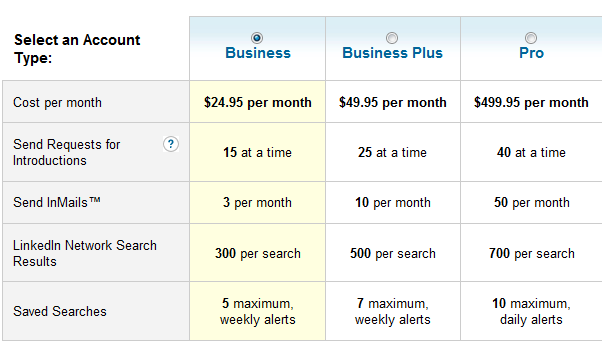
 While there is a growing number of recruiting professionals and organizations who pay for premium access to LinkedIn, there is still a large number of people who leverage LinkedIn with a free or “Personal” account.
If you’re on the fence about paying for increased access to LinkedIn, you’re reading the right post. I’m going to compare searching LinkedIn from the “inside” with a free “Personal” account using LinkedIn’s new people search interface with searching LinkedIn from the “outside” using Google and the x-ray technique.
If you are not familiar with the x-ray search technique, it will be covered in depth with examples later in this post.
I’ll also offer at least 3 different ways to create and automate LinkedIn searches outside of the LinkedIn search interface.
Free LinkedIn Search – From the “Inside”
There are actually a number of different ways and places to search for people on Linkedin. The more powerful methods involve #1 LinkedIn’s advanced search interface and #2 “Hand-coding” search strings using LinkedIn’s advanced search operators.
Controlling Candidate Variables
Both of those methods allow you to control critical candidate variables such as current and/or past employer, current and/or past title, industry, and location via zip code radius search. During or after you configure your search, you also have the option to sort results by relevance, relationship, relationship + recommendations, and keyword match/count.
Search Limits
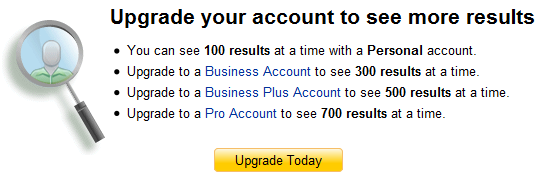
Once you execute your results, you can see the total number of results – but some people are not aware of the fact that with a free account, you are limited to viewing the first 100 results. Even if your search returns 12,947 results, when you try clicking on page 11 of the results, you will see this:
In and Out of Network Results
In the past, when searching inside of LinkedIn, users were limited to seeing ONLY results of people who are within their 1st, 2nd, and 3rd degree connections. Now, even users with a free account can see both a mix of people inside and outside of their personal network.
However, with a free account, results that are outside of your network do not show a name, are titled “private,” and the profiles have limited information. You must have a premium account to be able to view some/all out of network results and see expanded profiles of out of network results.
Boolean Search Capability
Kudos to LinkedIn for supporting most Boolean search operators and functionality. LinkedIn’s search interface supports:
- Implied AND: While you can type AND, you don’t have to – any space is seen as an AND (like Google)
- OR: You can craft Boolean search strings with multiple OR statements, enclosed by parentheses
- NOT: You can use the NOT operator to limit your results and exclude search terms
- Exact Phrases: You can use quotation marks to denote exact phrases of 2 or more words
java NOT recruiter (Lead OR led OR senior) NOT (.Net OR C#) (AJAX OR Struts) NOT (manager OR director)
When I tried to find out exactly HOW long of a Boolean search string LinkedIn will accept, I lost patience after cramming 316,638 characters into the search bar. No, I am not joking -try it yourself. I got tired of holding a letter down on my keyboard for several minutes. Then I even started copying and pasting large blocks (entire pages) of text into the search bar. Needless to say, LinkedIn will definitely take more than Google’s puny limit of 32 search terms (sorry Google), and Monster’s respectable limit of 500 characters with spaces.
Sadly, LinkedIn does not appear to support any form of root-word or stem searching. I tried using the asterisk to test this functionality, and I was fooled a couple of time when using terms like admin* or manag*. When I tried: unix linux scrip*, scrip* is definitely not pulling script, scripting, scripts, etc.
Reference Search
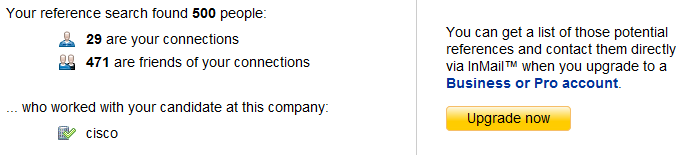
With a free account, while you can RUN a reference search, you cannot VIEW the results of a reference search:
Saved Searches
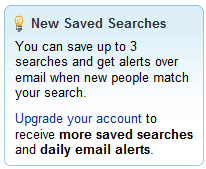
A “Personal” LinkedIn account will get you 3 saved searches.
Although not an automated saved search, you can create and save your LinkedIn searches in Notepad or Word and copy and paste them into LinkedIn’s search bar.

You can even create and save searches that incorporate and control when LinkedIn members have joined LinkedIn. For example – here is a search looking for someone who is currently working at Google, with a current title of engineer, who has joined in the last month:
ccompany:google ctitle:engineer joined:m

Results:
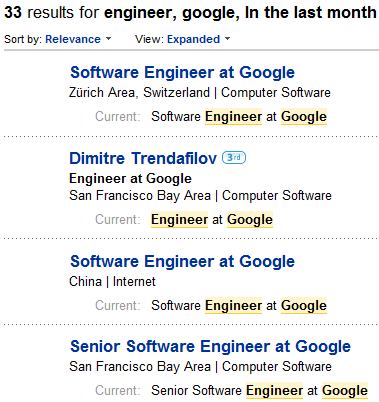
You could save that search string in Notepad or Word and copy and paste it into LinkedIn every month to find people who have recently joined LinkedIn in the past month.
Free LinkedIn Search – From the “Outside”
The way to search LinkedIn from the “outside” is to use an Internet search engine such as Google and employ the site: command to tell Google to search and return results only from the LinkedIn domain. This is often referred to as an “x-ray” search, because the search engine is only focusing it’s search “powers” on pages it has indexed from the site/domain you specify.
For example, enter this into Google:
site:linkedin.com java -“manager” -“director” (~develop | ~design) (Ajax | Struts) Weblogic -recruiter (inurl:pub | inurl:in) -intitle:directory
You can see from the results page that every single result comes from www.linkedin.com

The vast majority of LinkedIn members/users do choose to publish their LinkedIn profile to the web, which then enables search engines like Google to index them and allows you to search for and retrieve them.
Controlling Candidate Variables
When using the site: command to x-ray search LinkedIn, you do not have control over all of the candidate variables that you do when you search from within LinkedIn.
You can control, for the most part, current titles. For example:
site:linkedin.com “current * project manager” (inurl:pub | inurl:in) -intitle:directory
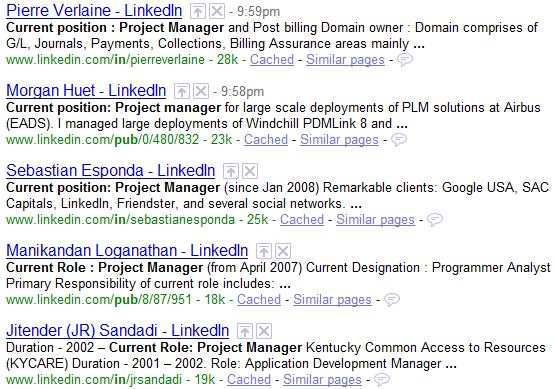
However, I am not aware of any reliable way to control past company experience and avoid current experience at a specific employer. Additionally, there does not appear to be a way to control current or past company experience. Searching for a specific company name will yield results of people who have worked at that target company at some point in their career, but not necessarily only in their current or past experience.
Location
You can search for candidates from a specific metro area. For example:
site:linkedin.com “current * project manager” (inurl:pub | inurl:in) -intitle:directory “greater chicago area”
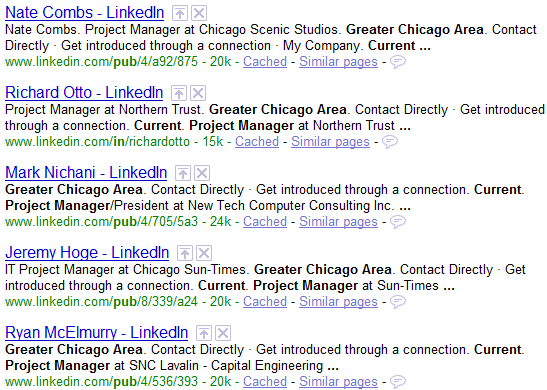
However, there is no way to refine your search by zip code radius as you can using LinkedIn’s search interface.
ALERT – you should be aware that LinkedIn has begun to offer multiple location phrases for some zip/postal codes, so I strongly recommend you read this post that details what you should do about it.
Industry
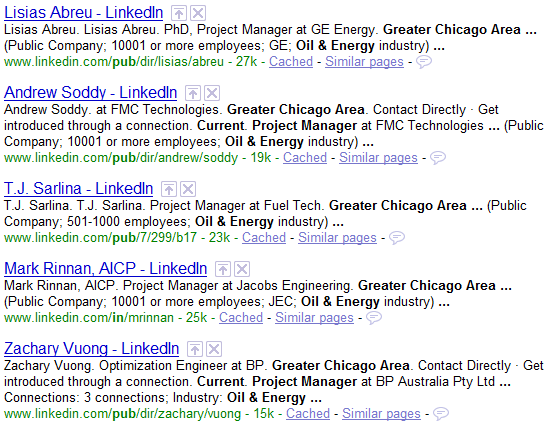
You can use Google and the site:command to search LinkedIn and return results of people who have identified themselves as working in a particular industry. For example, let’s pick “Oil & Energy” from LinkedIn’s industry list:
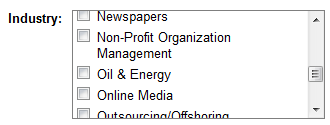
site:linkedin.com “current * project manager” (inurl:pub | inurl:in) -intitle:directory “greater chicago area” “Oil & Energy”
Search Limits
When using the site: command to search LinkedIn, you can review up to 1000 results – 10X the number you can with a LinkedIn “Personal” account. The limit is actually imposed by Google. Even if you get 142,389 total results, you can’t view any results past 1000 (most of the time you can’t even view the 1000th). Try for yourself.
In and Out of Network Results
A HUGE benefit to x-ray searching LinkedIn through an Internet search engine is that you can retrieve and view ANY public profile, whether it’s in or out of your network.
Read this post for a thorough look at how to take a nameless “out of network” result you find from searching within LinkedIn and find it with the name and full profile using Google.
Boolean Search Capability
When searching LinkedIn via an Internet search engine, you are limited to the Boolean operators of the search engine, not LinkedIn. While most Internet search engines, including Google, cannot match LinkedIn’s Boolean search capability or capacity, you CAN effectively create searches to find pretty much anything you need when performing and x-ray search of LinkeIn.
If you are a die-hard Google search fan, you may be surprised to learn that Bing offers many advantages and search functionality that Google does not, specifically with regard to X-Ray searching LinkedIn.
Reference Search
There does not appear to be any reliable way to perform a LinkedIn reference search for a specific company using an Internet search engine.
Saved Searches
There are a number of ways you can create saved searches of LinkedIn outside of LinkedIn.
Using LinkedIn Advanced Operators to Create Saved Searches
Using LinkedIn’s Advanced Operators, regardless of your level of account, you can “save” an unlimited number of pre-configured search strings in Notepad (or the program of your choice) that you can simply copy and paste and use whenever you like.
For example, if you wanted to stay on top of engineers at Facebook that mention Hadoop in their profiles, you could save this string and use it whenever you like to find new people as they join LinkedIn:
ccompany:facebook country:”united states” engineer hadoop
Using Google Alerts to Create Saved Searches
Using Google, you can create a form of “saved search” of LinkedIn using Google’s Alerts.
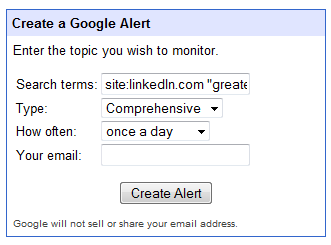

With Google Alerts, you can create search strings to x-ray LinkedIn and return results to your email on an “as-it-happens,” once a day, or weekly basis. From the LinkedIn x-ray Google Alerts I have created, you won’t get very many results if your search strings are highly targeted – typically only when a profile has been updated or newly created.
Creating RSS Feeds from LinkedIn X-Ray Searches with Bing
While most sourcers and recruiters are familiar with Google’s email alerts, I don’t think many are familiar with Bing’s ability to convert searches into RSS feeds.
Using the Bing X-Ray search for engineers at Google from above, here is what you will find in the address bar:
http://www.bing.com/search?q=site%3Alinkedin.com+powered+current+near%3A3+%22engineer+at+Google%22+%22san+francisco+bay+area%22&go=&form=QBRE
To which you can add &format=rss at the end, resulting in this:
http://www.bing.com/search?q=site%3Alinkedin.com+powered+current+near%3A3+%22engineer+at+Google%22+%22san+francisco+bay+area%22&go=&form=QBRE&format=rss
When you add &format=rss and hit “Enter,” you’ll see this:
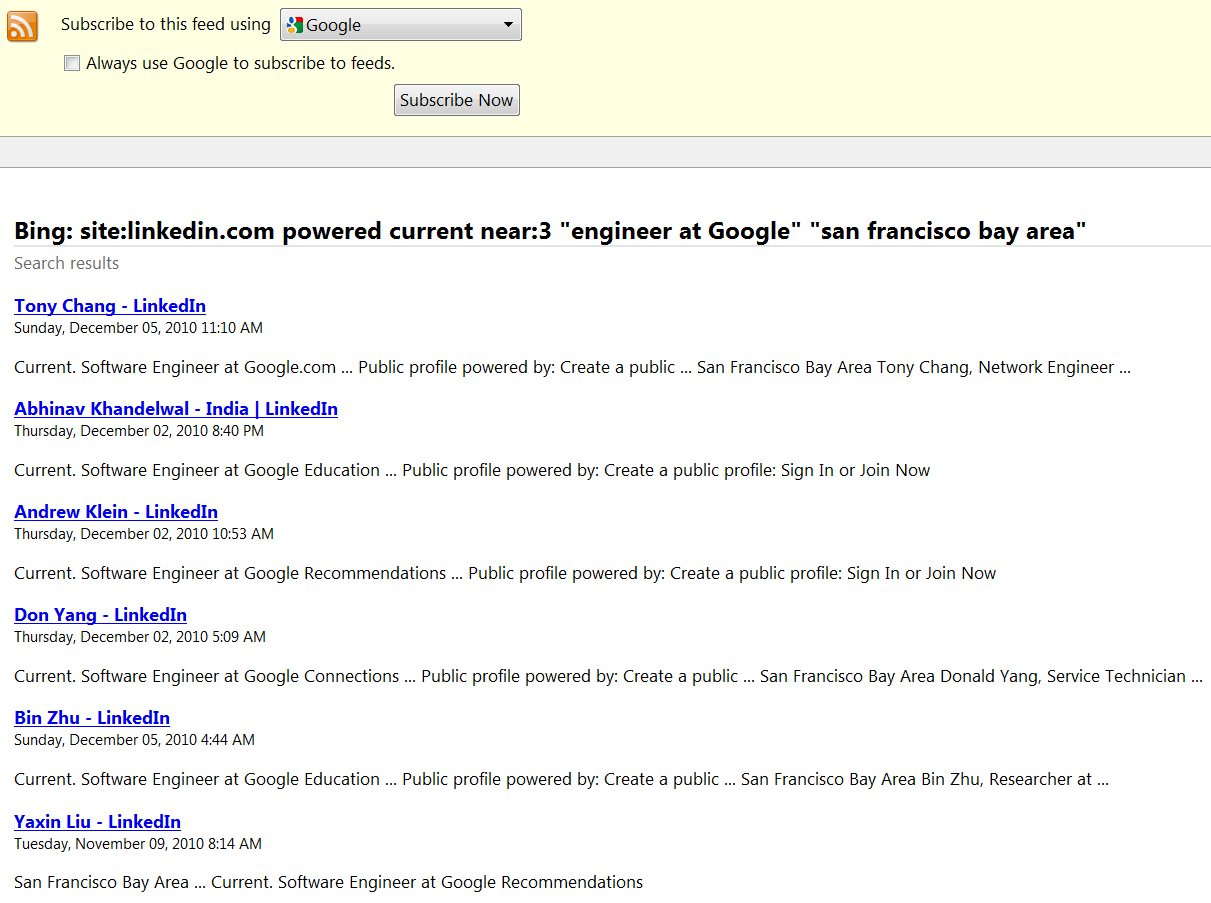
Notice anything interesting about the results?
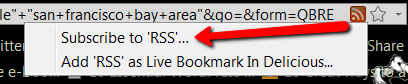
Of course, if you use Firefox, you could simply click here to accomplish the same thing:
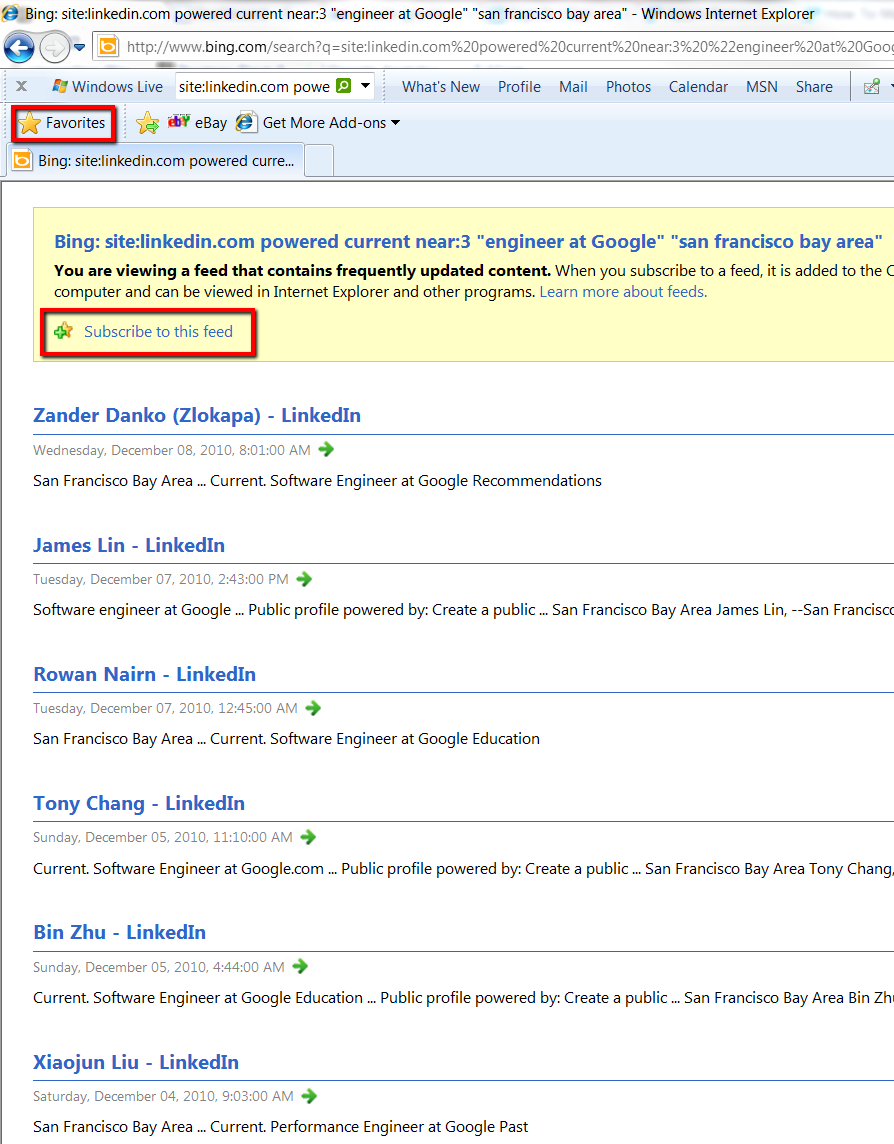
If you use Internet Explorer, after adding &format=rss and hitting “Enter,” you can add the feed to your Favorites or subscribe to the resulting feed:
Conclusion
Using LinkedIn’s search interface has the benefits of showing you who you are connected to, the ability to sort your results in a variety of ways, and the ability to precisely control many critical candidate variables, such as current/past company experience, current/past title, and location down to a 10 mile radius. Additionally, LinkedIn’s search interface supports relatively complex Boolean search strings for highly specific and targeted searching. However, with a free/”personal” account, you are limited to reviewing 100 results, and results out of your network are not viewable.
X-ray searching LinkedIn using Google and the site: command has the benefits of returning ALL public profiles on LinkedIn that match your search, whether they are in your network or not – and you can view up to 1000.
Additionally, using Google to search LinkedIn allows you to search for and control specific industry experience as you can from within LinkedIn. However, when searching LinkedIn with the x-ray technique, you cannot sort your results as you can in LinkedIn, you cannot search by when people have joined LinkedIn, you’re limited to Google’s Boolean search capability and 32 search term limit, and you do not have precise control over current employer or location beyond major metro area (typically a 50 mile radius).
Thankfully when you have a free “Personal” account with LinkedIn, you can take advantage of the best of both worlds – searching LinkedIn from the inside and the outside. If you have a free account and you’re thinking about upgrading to a premium account, be sure to carefully consider whether or not the additional features gained are worth the price considering what you can do for free.